
Operation Approval
Log in to a Service
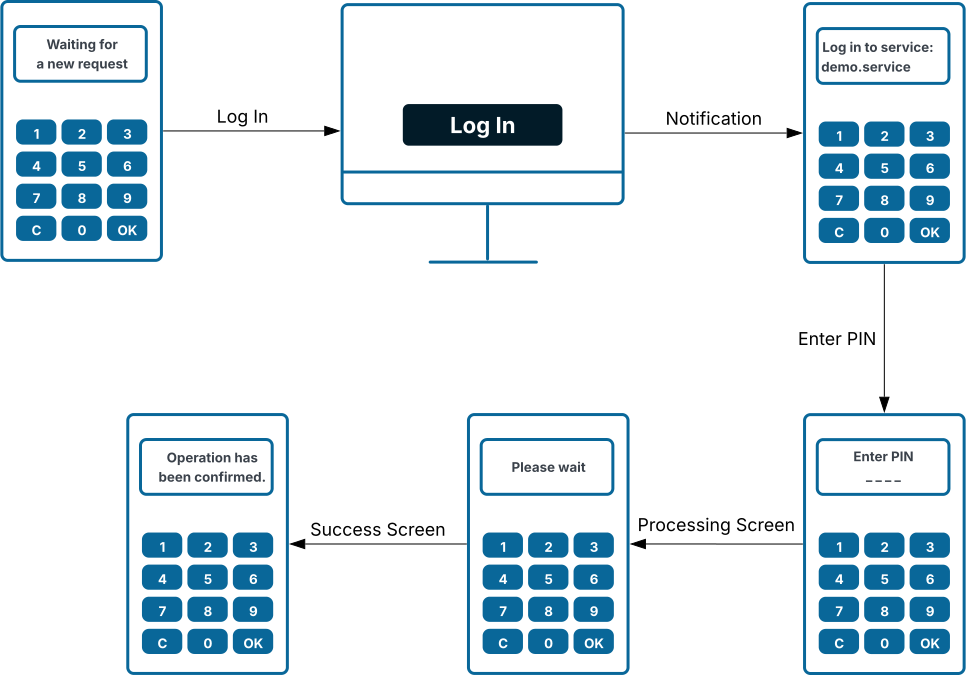
This section describes how to use your Talisman token to securely log in to your internet banking account. The login process combines actions performed on your computer with confirmation on the Talisman device, ensuring that access is granted only after your identity has been verified.
User Journey
Steps
- When connecting the Talisman Token with the cable, the following message appears:
Hello! I'm your secure key - After 3 seconds, the Talisman screen automatically changes to the following text:
Waiting for a new request - On the computer, fill in your login details and press the “Log In” button.
- A login request is shown on the Talisman screen. Confirm the login by pressing the “OK” button.
- Enter the PIN code.
- After entering the correct PIN code you will be immediately logged into your internet banking account.
Integration
Steps
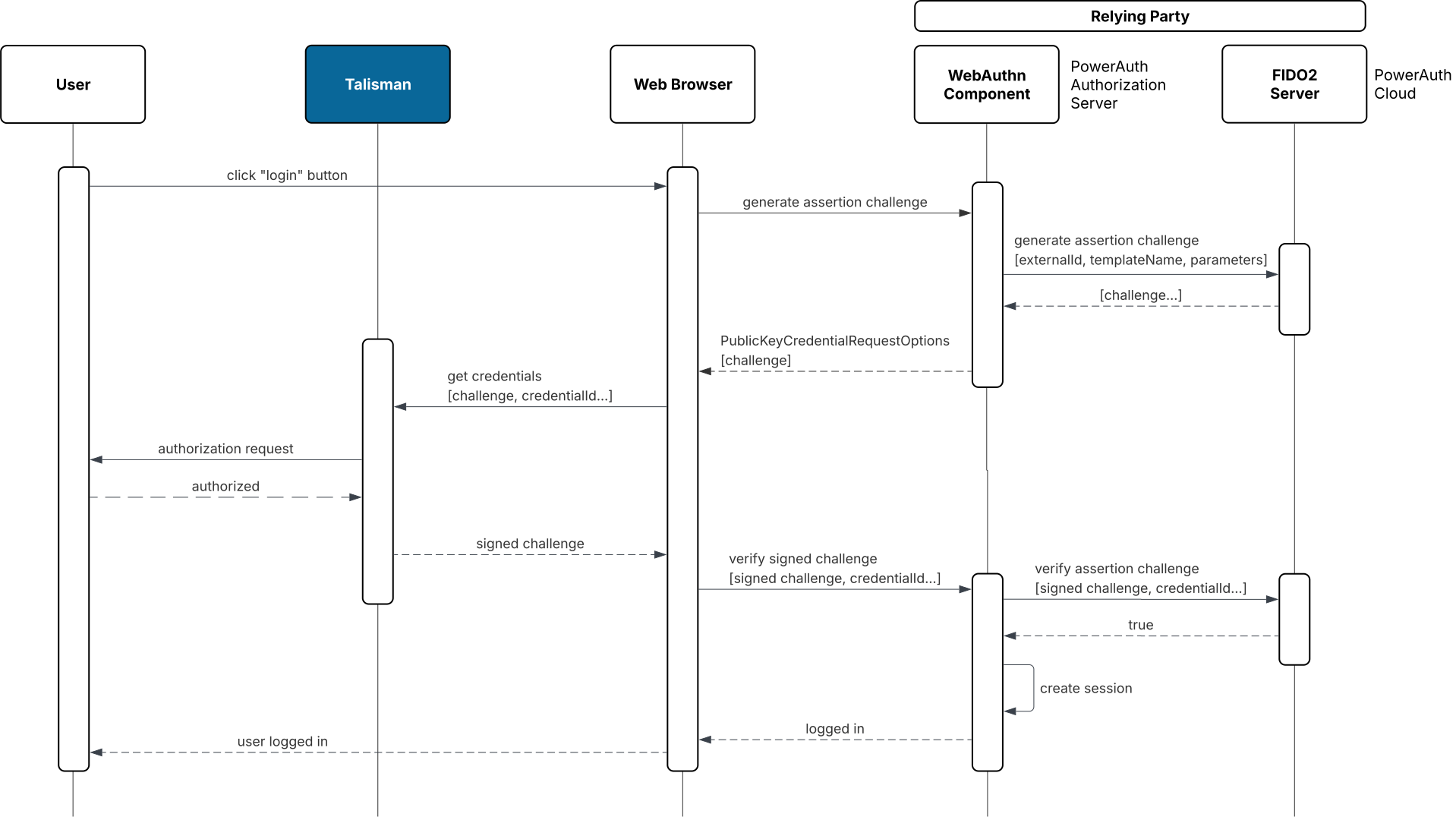
- The user clicks the “Log in” button in the application.
- The web browser requests an assertion challenge from the WebAuthn component.
- The WebAuthn component generates the assertion challenge by requesting it from the FIDO2 server.
- The FIDO2 server returns the challenge, and the WebAuthn component prepares the response (including credential data if needed).
- The browser receives the challenge (and credential ID) and forwards it to the Talisman authenticator.
- The Talisman prompts the user for authorization (PIN entry).
- After successful authorization, the Talisman signs the challenge.
- The signed challenge together with the credential ID is sent from the browser to the WebAuthn component.
- The WebAuthn component forwards the data to the FIDO2 server to verify the assertion.
- The FIDO2 server validates the signed challenge and returns a successful response.
- The system creates a user session.
- The system confirms that the user is successfully logged in.
Payment Operation
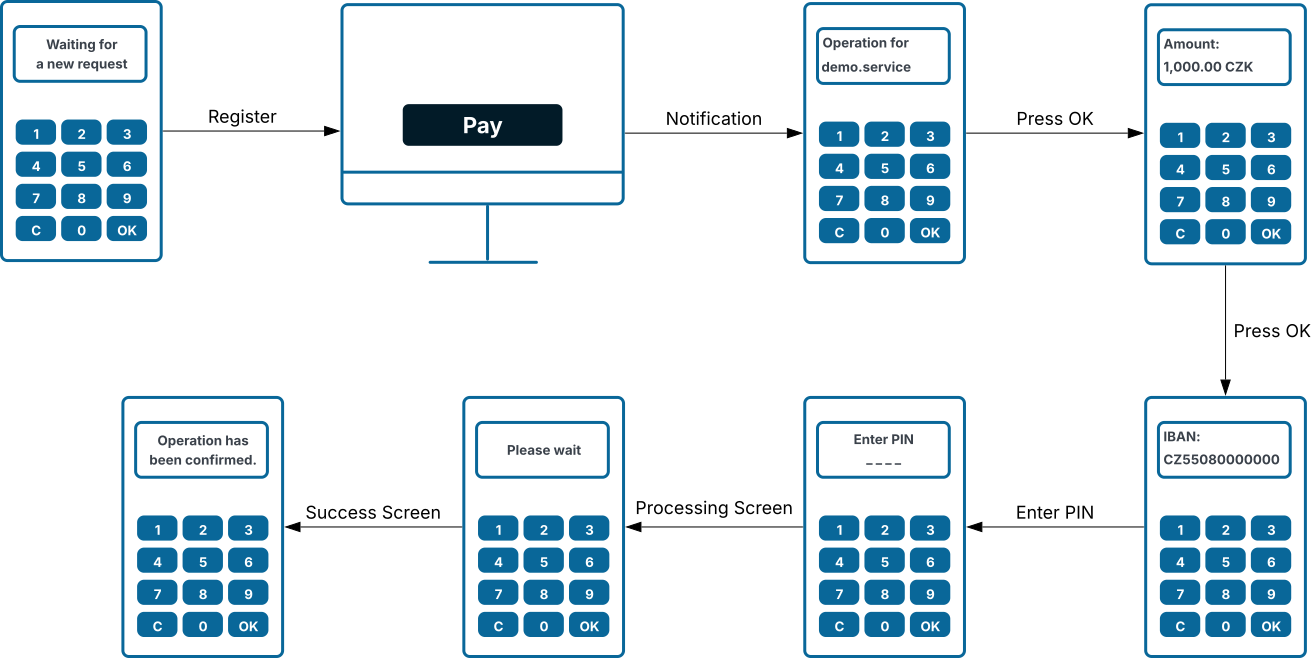
Operation authorization is the process of confirming sensitive actions, such as payments, using your Talisman token. Before the action is completed, the device displays key details for your review, allowing you to verify and explicitly approve or reject the operation. This ensures that only intended and validated transactions are carried out.
User Journey
Steps
- When connecting the Talisman Token with the cable, the following message appears:
Hello! I'm your secure key - After 3 seconds, the Talisman screen automatically changes to the following text:
Waiting for a new request - Initiate the payment in your internet banking on the computer.
- A notification about the operation will be displayed on the Talisman screen - you can review the details of the operation:
- The beneficiary’s IBAN is displayed on the token. Press “OK”.
- The amount is displayed. Press “OK” again.
- Confirm the operation by entering the PIN code.
- After entering the PIN code, the following message will appear, which means that the operation was successfully authorized.
Operation has been confirmed
Integration
Steps
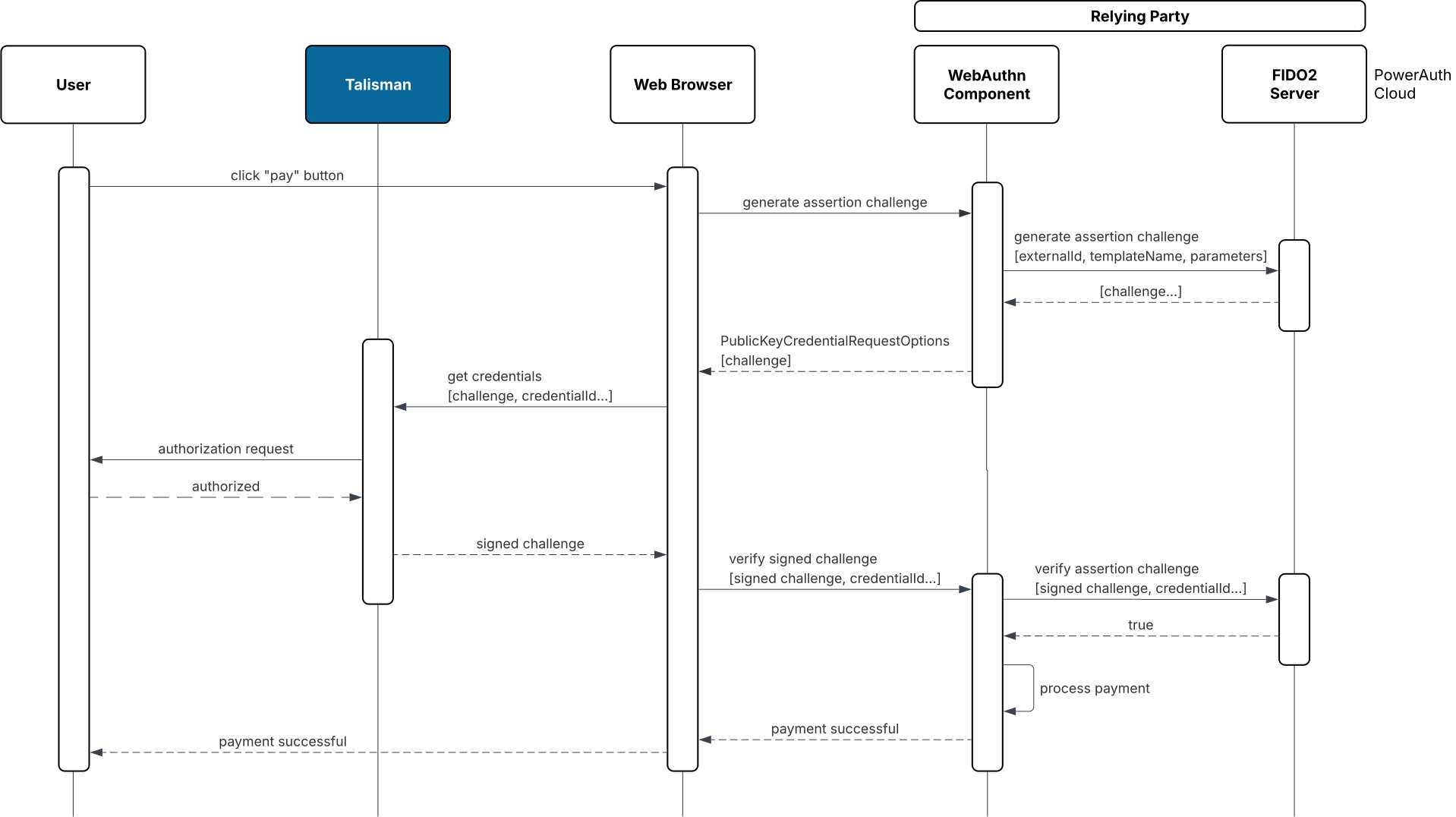
- The user clicks the “Pay” button in the application.
- The web browser requests an assertion challenge from the WebAuthn component.
- The WebAuthn component generates the assertion challenge by requesting it from the FIDO2 server (PowerAuth Cloud).
- The FIDO2 server returns the challenge, and the WebAuthn component prepares the response (including credential data if needed).
- The browser receives the challenge (and credential ID) and forwards it to the Talisman authenticator.
- The Talisman prompts the user for authorization (e.g., PIN entry).
- After successful authorization, the Talisman signs the challenge using the selected credential.
- The signed challenge together with the credential ID is sent from the browser to the WebAuthn component.
- The WebAuthn component forwards the data to the FIDO2 server to verify the assertion.
- The FIDO2 server validates the signed challenge and returns a successful response.
- The The system processes the payment.
- The system confirms that the payment was successful.
Generic Operation
User Journey
The user journey for a generic operation is similar to that of a payment operation.
Integration
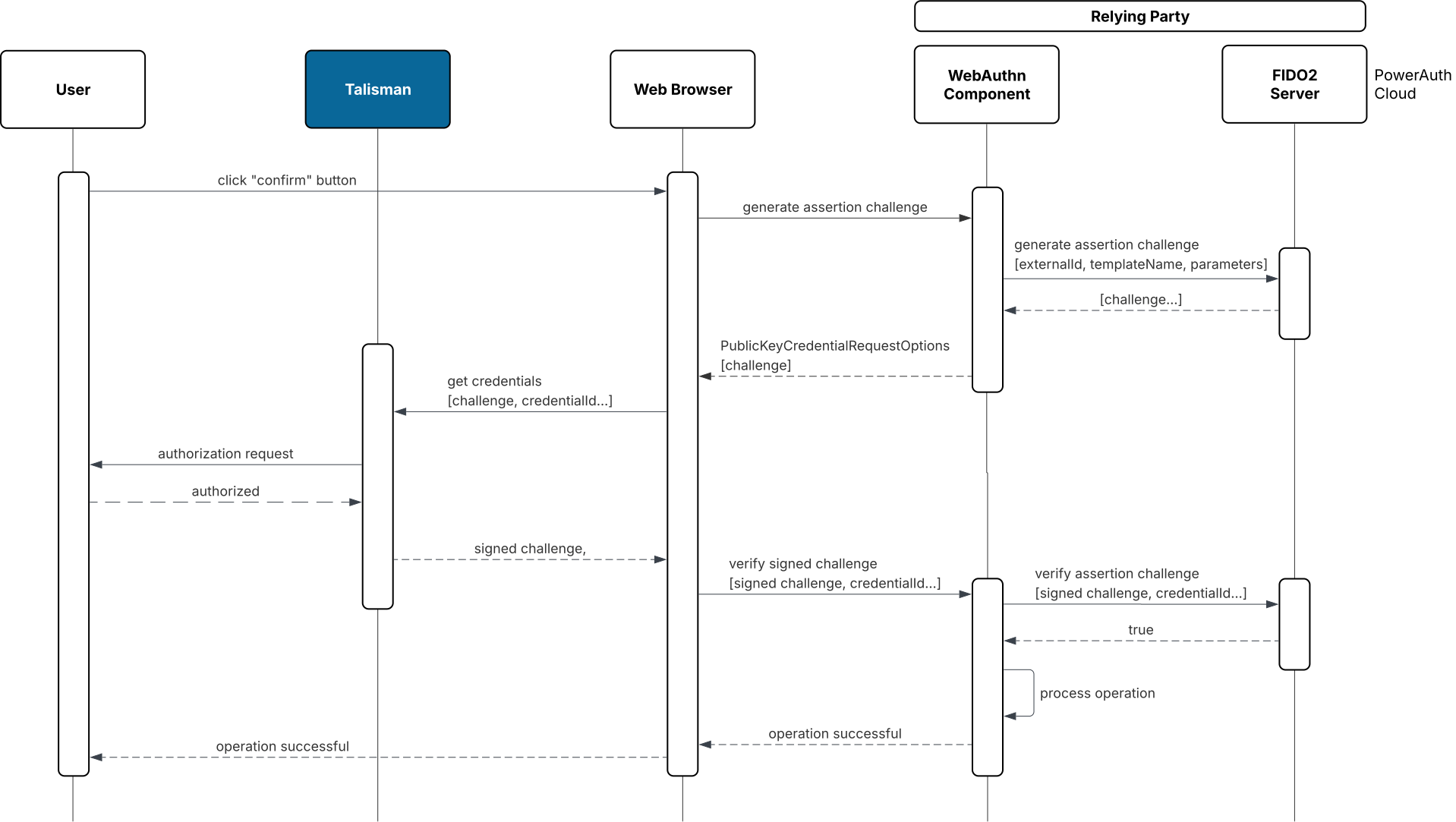
- The user clicks the “Confirm” button in the application.
- The web browser requests an assertion challenge from the WebAuthn component.
- The WebAuthn component generates the assertion challenge by requesting it from the FIDO2 server (PowerAuth Cloud).
- The FIDO2 server returns the challenge, and the WebAuthn component prepares the response (including credential data if needed).
- The browser receives the challenge (and credential ID) and forwards it to the Talisman authenticator.
- The Talisman prompts the user for authorization (e.g., PIN entry).
- After successful authorization, the Talisman signs the challenge using the selected credential.
- The signed challenge together with the credential ID is sent from the browser to the WebAuthn component.
- The WebAuthn component forwards the data to the FIDO2 server to verify the assertion.
- The FIDO2 server validates the signed challenge and returns a successful response.
- The system processes the operation.
- The system confirms that the operation was successful.
Canceling an Operation
Cancelling an operation is the process of intentionally rejecting a pending request on your Talisman token. It allows you to stop an action if the details do not match your expectations or if the request was not initiated by you, helping to prevent unauthorized or incorrect operations.
User Journey
Steps
- Press the “C” button during login or operation confirmation, the following text will appear:
Reject operation? - By pressing the “OK” button, you will reject the operation.