
Reactivation with Biometry Online
User Journey
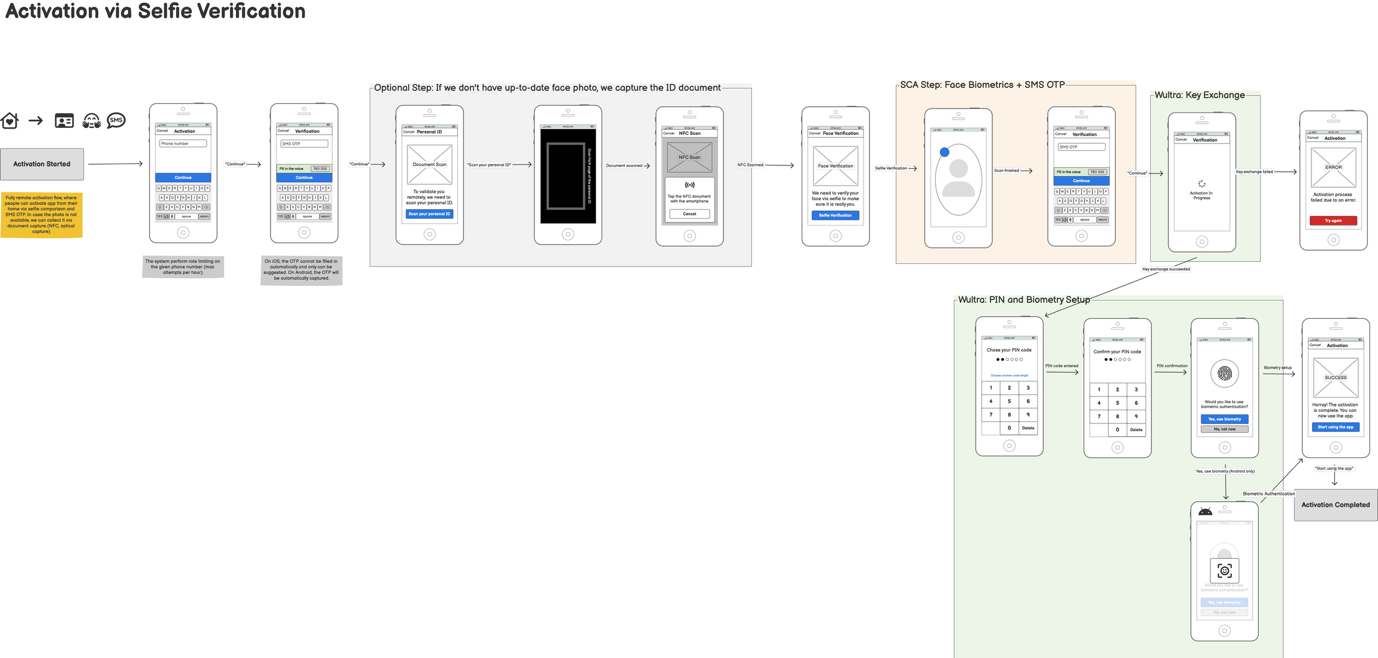
This diagram outlines the process of online reactivation using biometric verification to verify the client’s identity securely. This workflow integrates document scanning (OCR) and facial biometric verification to ensure a secure and seamless user experience through a mobile device.
Integration
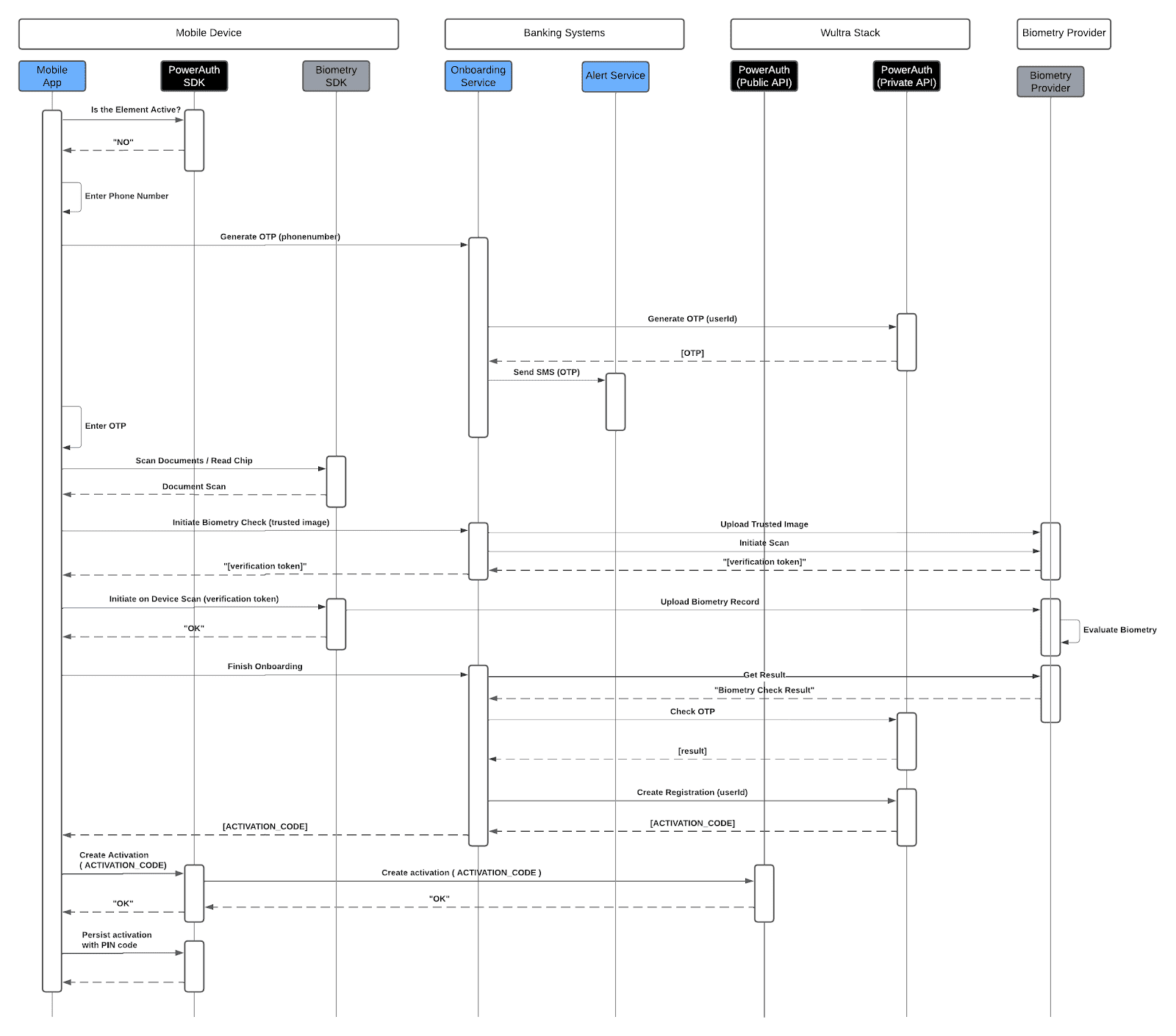
- The reactivation process begins on the mobile device, where the PowerAuth SDK checks whether the authentication element is active. If the element is not active, the reactivation process can be initiated.
- The mobile app sends a request to the onboarding service on the Bank side to generate the OTP. The onboarding service then requests that Wultra generate the OTP, which is then returned back to the Bank systems, and then via alert service sent to the client’s mobile device via SMS.
- Once the client receives the OTP, they enter it into the mobile app. The mobile app prompts the user to scan identity documents or read the embedded chip, depending on the document type.
- After scanning the documents, the app initiates the biometric check, which involves taking a trusted image of the user and uploading it to the biometric provider for evaluation and comparison. It also initiates the facial scan.
- The biometry provider sends a verification token, which the biometry SDK uses to initiate the facial scan in the mobile app.
- After the facial scan is completed, the biometry SDK uploads biometry records to the server- side biometry provider to evaluate the result against the initially obtained image.
- If the result is positive, indicating a successful biometric match, the reactivation proceeds.
- At this stage, the onboarding service completes the process, and the entered OTP is validated. If the result is positive, the Onboarding Service can initiate a new registration process. The Wultra system returns an activation code that is passed to the mobile device.
- The activation code is used to create the activation on the mobile device. The mobile app then sends the activation code and a cryptographic payload to Wultra’s backend for verification.
- Upon successful verification, Wultra returns an “OK” response along with a cryptographic payload.
- Finally, the client is prompted to set up a PIN code, which is used to securely persist the activation data on the device. This step finalizes the mobile app’s binding, enabling new SCA.